
Exporting Data
Download a report as CSV
Every report in Adovance can be exported so you can drop it into a board deck, Power BI, or Excel.
Download a report as CSV
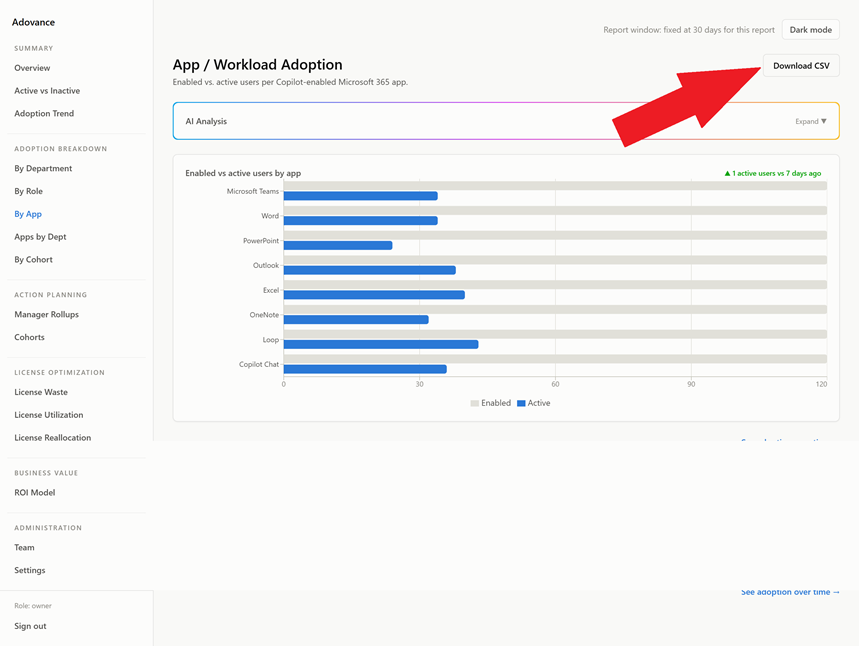
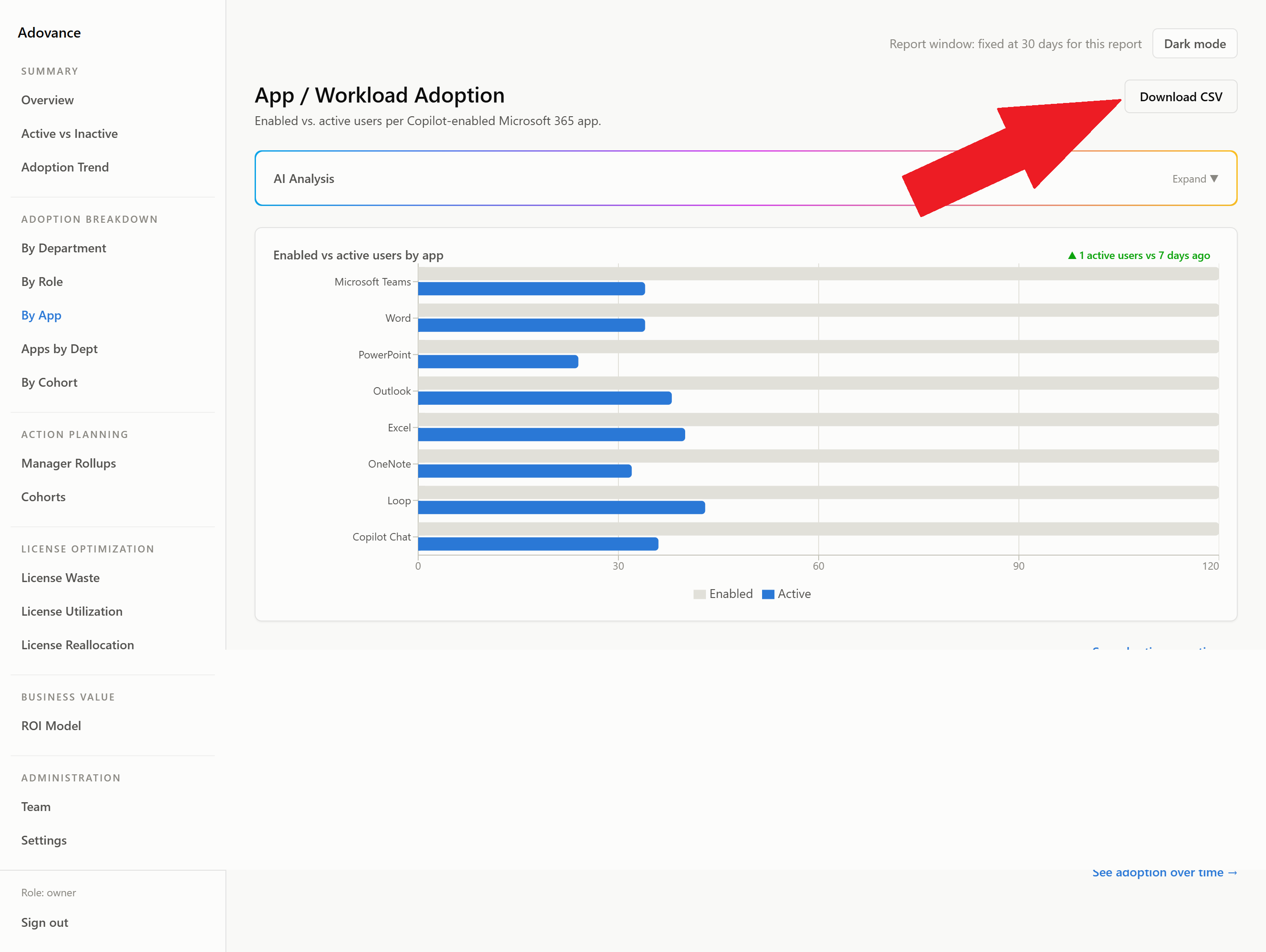
- Open any report.
- Click Download CSV (top of the report).
- The file downloads to your device.
What’s in the export
The CSV contains the report’s underlying data for the currently selected report window (7 / 30 / 90 days, where applicable). Change the window first if you want a different period.
Common workflows
| Goal | How |
|---|---|
| Board deck | Export License Waste and ROI, paste the headline figures into slides |
| Power BI dashboard | Export the reports you want and load the CSVs as a data source |
| Renewal analysis | Export License Utilization for purchased-vs-active seats per SKU |
| Manager accountability | Export Manager Rollups and share per leader |
Tips
- 💡 Set your economics before exporting dollar reports, or the figures will use placeholder defaults.
- 💡 The AI Analysis narrative on each report is great copy for the notes section of a slide.